AI image generation and editing on Higgsfield: a practical workflow
Images are where most Higgsfield projects start — and where you can iterate fastest. Here is a workflow that takes you from rough idea to a polished, high-resolution image.
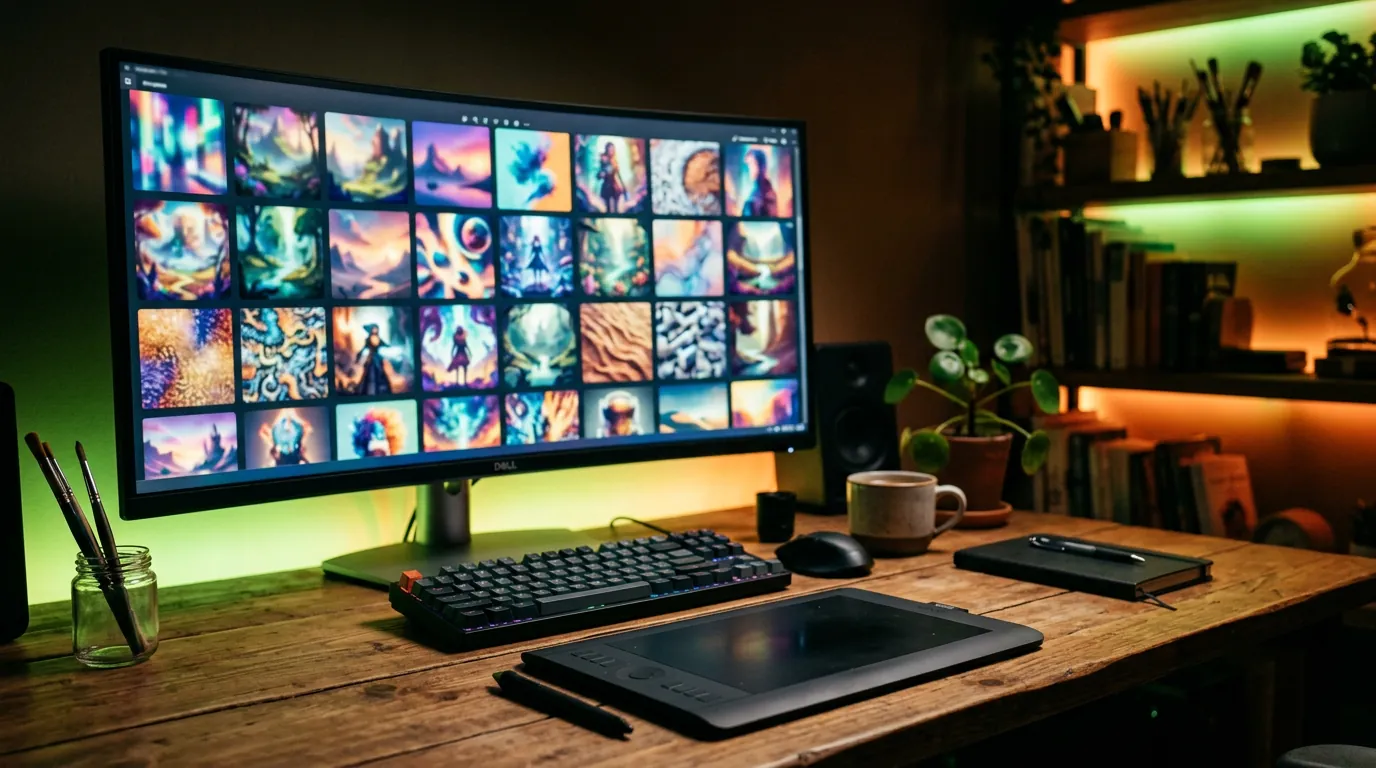
- Explore on a fast model → refine on a quality model → edit details → upscale for delivery.
- Pick the aspect ratio for the final platform before you start.
- Use editing and references instead of regenerating from scratch.
1. Choose the right aspect ratio first
| Ratio | Best for |
|---|---|
| 16:9 | YouTube thumbnails, website banners, cinematic frames, video key frames |
| 9:16 | TikTok, Reels, Shorts, Stories |
| 4:5 | Instagram feed posts |
| 1:1 | Profile pictures, marketplace product images |
| 3:2 / 2:3 | Photography-style images, posters |
If you later need another format, Higgsfield’s reframe and outpaint tools can extend an image, but starting with the right ratio gives cleaner compositions.
2. Explore on a fast model
Start on a fast, low-cost model and generate several variations of your idea. At this stage you are judging composition and concept, not fine detail. Change one element of the prompt at a time and keep notes.
3. Refine on a quality model
Once you like a concept, run the same prompt on one or two higher-end models and compare. As a rule of thumb:
- Need readable text (posters, packaging, slides)? Try a model known for typography, such as GPT Image, Nano Banana Pro or Ideogram.
- Need realistic people or fashion? Try Higgsfield Soul.
- Need cinema-style stills? Try Cinema Studio’s image models or Soul Cinema.
- Need vector logos or icons? Try a vector-capable model such as Recraft or Ideogram Vector.
Our models guide compares them in more detail.
4. Edit instead of regenerating
Almost perfect? Do not start again. Upload the image to an editing-capable model (for example Seedream, FLUX Kontext, Nano Banana or GPT Image) and describe only the change:
Keep everything identical, but change the time of day to night with soft neon reflections on the ground
Good edit instructions start with what must stay the same, then state one change. Typical edits: change background, change lighting or season, change clothing colour, remove an object, add a product to a scene.
5. Useful utilities
- Upscale — increase resolution for print or large screens.
- Background remover — isolate a product or person on a transparent background.
- Reframe / outpaint — extend an image beyond its borders to change format.
- Image to 3D — turn a single object image into a 3D model, useful for product visualisation and games.
6. Prepare images for the web
For a website or blog, convert your images to WebP and resize them to the width actually displayed (800 and 1400 pixels wide cover most cases). Give every image a descriptive file name and alt text — it helps both accessibility and search engines. That is exactly how the images on this site were prepared.
Frequently asked questions
What is the best image model on Higgsfield?
There is no single best one. Fast models are best for exploring, typography-focused models for text, Soul for realistic people, and Cinema Studio for film-like stills. Test two or three on the same prompt.
Can I edit a photo I already have?
Yes. Many models accept an uploaded image plus an instruction describing the change. Only upload images you have the rights to use.
How do I get higher resolution?
Choose a higher resolution setting when the model offers one, or run the finished image through an upscaler.
Facts checked: October 29, 2026. Features, models and plans change often — always confirm on the official site.
Keep learning
What is Higgsfield AI? A clear introduction for 2026
Higgsfield AI explained in plain language: what the platform does, its main studios and models, who it is for, how credits work and how to get started.
Read guide →
Higgsfield for beginners: your first hour, step by step
A step-by-step Higgsfield tutorial for beginners: create your account, understand the interface and credits, generate your first image and turn it into a video.
Read guide →
How to plan and make your first AI video with Higgsfield
A practical workflow to make a short AI video with Higgsfield: write a one-line idea, build a shot list, create key frames, animate them, add sound and edit.
Read guide →