How to plan and make your first AI video with Higgsfield
Great AI videos are not one lucky prompt. They are planned like small films. This workflow takes you from a one-line idea to a 20–30 second video you are proud of.
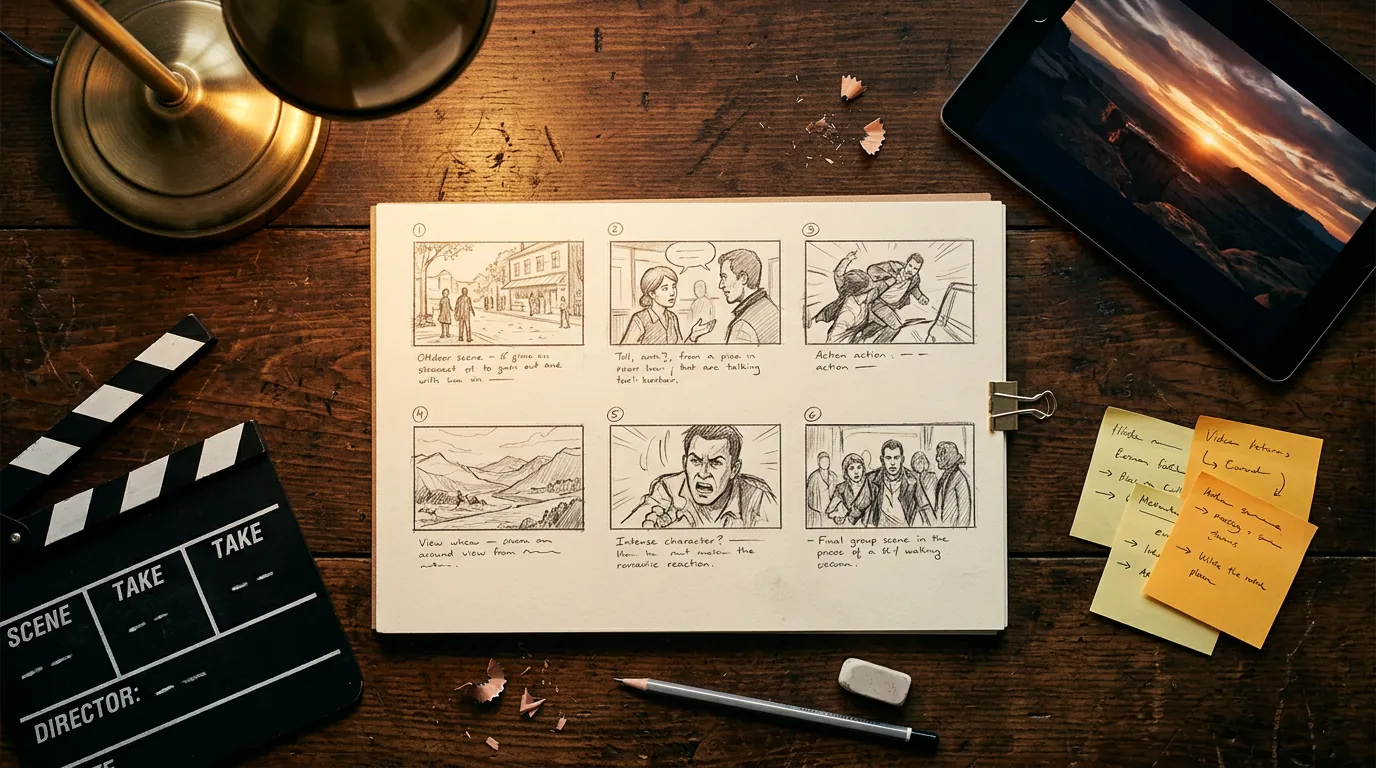
- Idea → shot list → key frames → motion → sound → edit.
- Most AI clips last a few seconds, so a 30-second video is usually 4 to 8 shots edited together.
- Creating each shot as an image first keeps your style consistent and saves credits.
1. Start with a one-line idea
Before opening any tool, write your idea in a single sentence that includes who, where and what changes. A change — a reveal, a transformation, an arrival — is what makes a video feel like a story.
A lone filmmaker walks across a salt flat at dusk and finds a glowing frame that opens onto another world.
Also decide the format now: 16:9 for YouTube or a showreel, 9:16 for TikTok, Reels and Shorts. Changing it later means regenerating everything.
2. Turn the idea into a shot list
Break the idea into 4–8 shots. For each one, write the framing, the action and the camera move. Keep it simple: one main action per shot.
| # | Framing | Action | Camera |
|---|---|---|---|
| 1 | Extreme wide | Tiny figure walking on the salt flat | Slow push in |
| 2 | Medium, from behind | The figure stops, light appears on the horizon | Static |
| 3 | Wide | A glowing frame floats above the ground | Slow orbit |
| 4 | Close-up | Light reflected in the character’s eyes | Slow push in |
| 5 | Through the frame | Another landscape is visible inside it | Dolly forward through the frame |
3. Fix your look with a “style line”
Consistency is the biggest challenge in AI video. Write one style line and paste it at the end of every prompt:
blue hour, lime-green and warm orange rim light, atmospheric haze, anamorphic lens, 35mm film grain, muted colours
If your video has a recurring character, describe them the same way every time (age, clothing, hair, one distinctive detail) or use Higgsfield’s character tools to keep the identity consistent.
4. Create a key frame for each shot
For each line of your shot list, generate an image with a good image model, using: framing + subject + action + setting + style line. Generate 2–4 variations and keep the best one.
Wide shot, a giant glowing rectangular light frame floating just above a reflective salt flat, a small figure standing in front of it, blue hour, lime-green and warm orange rim light, atmospheric haze, anamorphic lens, 35mm film grain, muted colours
Line your key frames up side by side. Do they look like the same film? If one shot stands out, regenerate it now — it is far cheaper than fixing it in video.
5. Animate each key frame
- Choose an image-to-video modelKling and Seedance models are strong all-rounders. For directed, film-like camera work, try Cinema Studio.
- Upload the key frame as start frameSome models also accept an end frame, which is great for controlled transitions between shots.
- Describe motion, not appearanceExample:
slow orbit around the frame, haze drifting, the light pulses softly, the figure does not move. - Keep motion modestOne subject movement plus one camera movement. Too much action creates distortions.
- Generate 2 takes of each shotPick the better take, as you would on a real set.
6. Add sound
Sound makes or breaks a video. Some recent video models generate native audio; otherwise use Higgsfield’s audio tools for voice-over or sound effects, or add licensed music in your editor. Make sure you have the rights to any music you use.
7. Edit it together
Import your clips into any editor (CapCut, DaVinci Resolve, Premiere Pro…). Then:
- Trim the first and last frames of each clip — AI clips often start and end a little stiffly.
- Cut on movement for smoother transitions.
- Apply a light, uniform colour grade to glue the shots together.
- Upscale the final clips if needed with Higgsfield’s upscaling tools.
Budget: how to avoid burning credits
- Do all your exploration on images. Video is for shots you already approve.
- Use the shortest duration and a standard resolution for tests; upscale only the final cut.
- Write down the settings of every successful shot so you can reproduce it.
Frequently asked questions
How long can a Higgsfield video be?
It depends on the model. Most clips last from about 5 to 15 seconds, and some newer models and Cinema Studio support longer generations. For longer videos, combine several shots in an editor.
Text-to-video or image-to-video?
For beginners, image-to-video is easier to control: you approve the look first, then add motion. Text-to-video is great for quick exploration.
How do I keep the same character in every shot?
Use a consistent written description, reuse the same reference image, and try Higgsfield’s character consistency tools. Our prompts and references guide explains how.
Facts checked: October 29, 2026. Features, models and plans change often — always confirm on the official site.
Keep learning
What is Higgsfield AI? A clear introduction for 2026
Higgsfield AI explained in plain language: what the platform does, its main studios and models, who it is for, how credits work and how to get started.
Read guide →
Higgsfield for beginners: your first hour, step by step
A step-by-step Higgsfield tutorial for beginners: create your account, understand the interface and credits, generate your first image and turn it into a video.
Read guide →
How to write Higgsfield prompts that work (with templates)
Learn to write better prompts for Higgsfield AI: a simple 6-part structure, copy-ready templates for images and video, camera vocabulary and how to use reference images.
Read guide →