Higgsfield for beginners: your first hour, step by step
You have just opened Higgsfield and the number of models and buttons feels overwhelming. Follow this guide and in one hour you will have made your first image and your first video — without wasting credits.
- Create an account and find your way around the interface.
- Understand credits so you never run out by surprise.
- Generate a first image, improve it, then animate it into a short video.
Step 1 — Create your account
- Go to the official siteOpen higgsfield.ai and choose Sign up. Follow the sign-up flow with your email or one of the social logins offered on the page.
- Start on the free planYou do not need to pay to explore. The free tier gives you a small number of credits, enough to test a few image models.
- Check your credit balanceYour balance is shown in your account area. Keep an eye on it during your first session to learn what things cost.
Step 2 — Understand the interface
Higgsfield’s interface evolves, but it is always organised around the same ideas:
- Create Image and Create Video — the main generators. You choose a model, write a prompt and set the options.
- Studios and apps — guided tools such as Cinema Studio, Marketing Studio or character tools, plus a directory of smaller apps (face swap, try-on, effects…).
- Community / Explore — other users’ creations, often with their prompts. A great place to learn.
- Your library — every image and video you generate is saved here so you can download it or reuse it as a reference.
Step 3 — Learn how credits are spent
Every generation costs credits. Three things drive the price:
- The model — budget models cost little; premium video models cost much more.
- The output size — higher resolution and more variants cost more.
- The duration (for video) — a 10-second clip costs more than a 5-second one, and audio can add to the price.
The cost is displayed before you click Generate. Make a habit of reading it.
Step 4 — Generate your first image
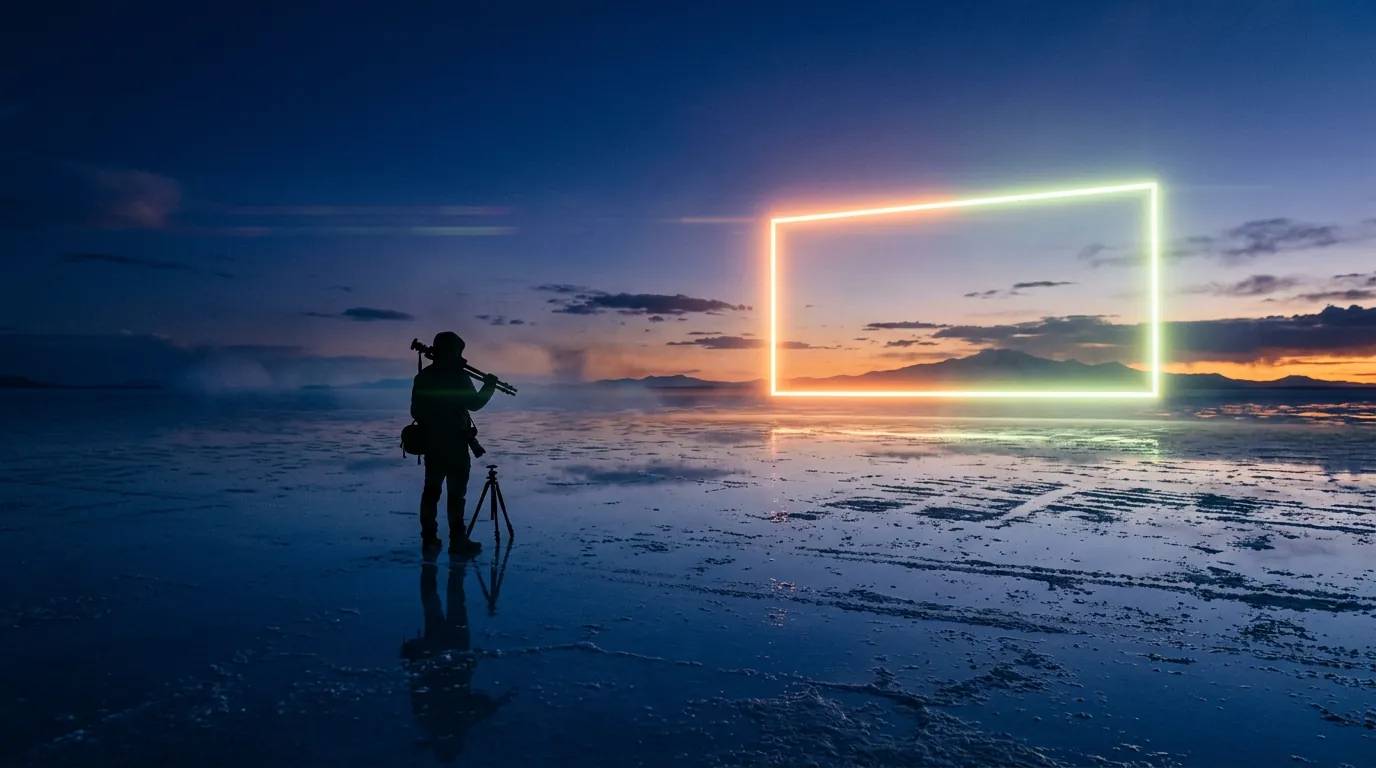
Open Create Image and pick a fast, affordable general model (for example a Nano Banana or Seedream model). Choose the 16:9 aspect ratio for a cinematic frame, or 9:16 for a vertical social post. Then paste this prompt:
Cinematic wide shot, a lone filmmaker silhouette standing on a vast reflective salt flat at blue hour, a giant glowing rectangular light frame floating above the horizon, soft lime-green and warm orange rim light, atmospheric haze, anamorphic lens, film grain, no text
That is the exact prompt we used for the image at the top of our homepage. Click generate and wait a few seconds.
Step 5 — Improve the result
Your first result is a draft. Change one thing at a time so you learn what each word does:
- Change the time of day:
at blue hour→at golden hour. - Change the lens feeling:
anamorphic lens→telephoto lens, compressed perspective. - Change the mood: add
light rain, reflections on wet ground.
Generate again and compare. After three or four rounds you will understand how the model “thinks”. Our prompt-writing guide goes much further.
Step 6 — Animate it into a video
- Open Create VideoChoose an image-to-video model. Kling and Seedance models are popular, reliable choices for motion.
- Use your image as the start frameSelect the image from your library (or upload it).
- Describe only the motionThe image already defines the look. Your prompt should describe what moves and how the camera moves, for example:
slow dolly forward, the light frame flickers gently, haze drifts, the figure stays still. - Pick a short durationStart with the shortest option (often 5 seconds). Extend only once the motion is right.
- Generate and reviewIf the motion is chaotic, simplify the prompt: fewer moving elements give cleaner results.
Step 7 — Download and organise
Download your favourite results from your library. Keep a simple text file with the prompts that worked — this personal prompt library becomes your most valuable asset as you progress.
Beginner mistakes to avoid
- Writing a wall of text. Longer is not better. Clear structure beats many adjectives.
- Jumping straight to video. You will burn credits on compositions you do not even like.
- Changing everything at once. You will never know what improved the result.
- Using real people or brands without permission. It can break the platform’s rules and the law.
Frequently asked questions
How long does a generation take?
Images usually take a few seconds to under a minute. Videos take longer — from under a minute to several minutes depending on the model, length and server load.
Which model should a beginner use?
For images, start with a fast general model such as Nano Banana 2 or Seedream. For video, start with a Kling or Seedance image-to-video model. See our models guide for details.
Can I use my generations commercially?
Commercial rights depend on your plan and on Higgsfield’s current terms of service. Read the official terms before using content in paid campaigns.
Facts checked: October 29, 2026. Features, models and plans change often — always confirm on the official site.
Keep learning
What is Higgsfield AI? A clear introduction for 2026
Higgsfield AI explained in plain language: what the platform does, its main studios and models, who it is for, how credits work and how to get started.
Read guide →
How to plan and make your first AI video with Higgsfield
A practical workflow to make a short AI video with Higgsfield: write a one-line idea, build a shot list, create key frames, animate them, add sound and edit.
Read guide →
How to write Higgsfield prompts that work (with templates)
Learn to write better prompts for Higgsfield AI: a simple 6-part structure, copy-ready templates for images and video, camera vocabulary and how to use reference images.
Read guide →